Features
Put the page on the screen, and nothing else
Everyone has seen it. Counsel plugs into the courtroom feed and the room gets a desktop: a folder called Trial FINAL v3, a browser with eleven tabs, a chat notification, and somewhere behind all of it, the document. The judge waits. The jury reads the file names.
Presentation mode exists to make that impossible. It is a fullscreen view that shows the exhibit page, the exhibit number and name, and a page counter. There is no toolbar, no sidebar, no cursor chrome and no file system. You get to it with the Present button or its shortcut, and you leave it with Esc. Since version 0.3 you can also mark the page while you present — a pen, a highlighter, an arrow, a box, a laser pointer and a zoom callout — on a layer that is wiped when you move to the next exhibit.
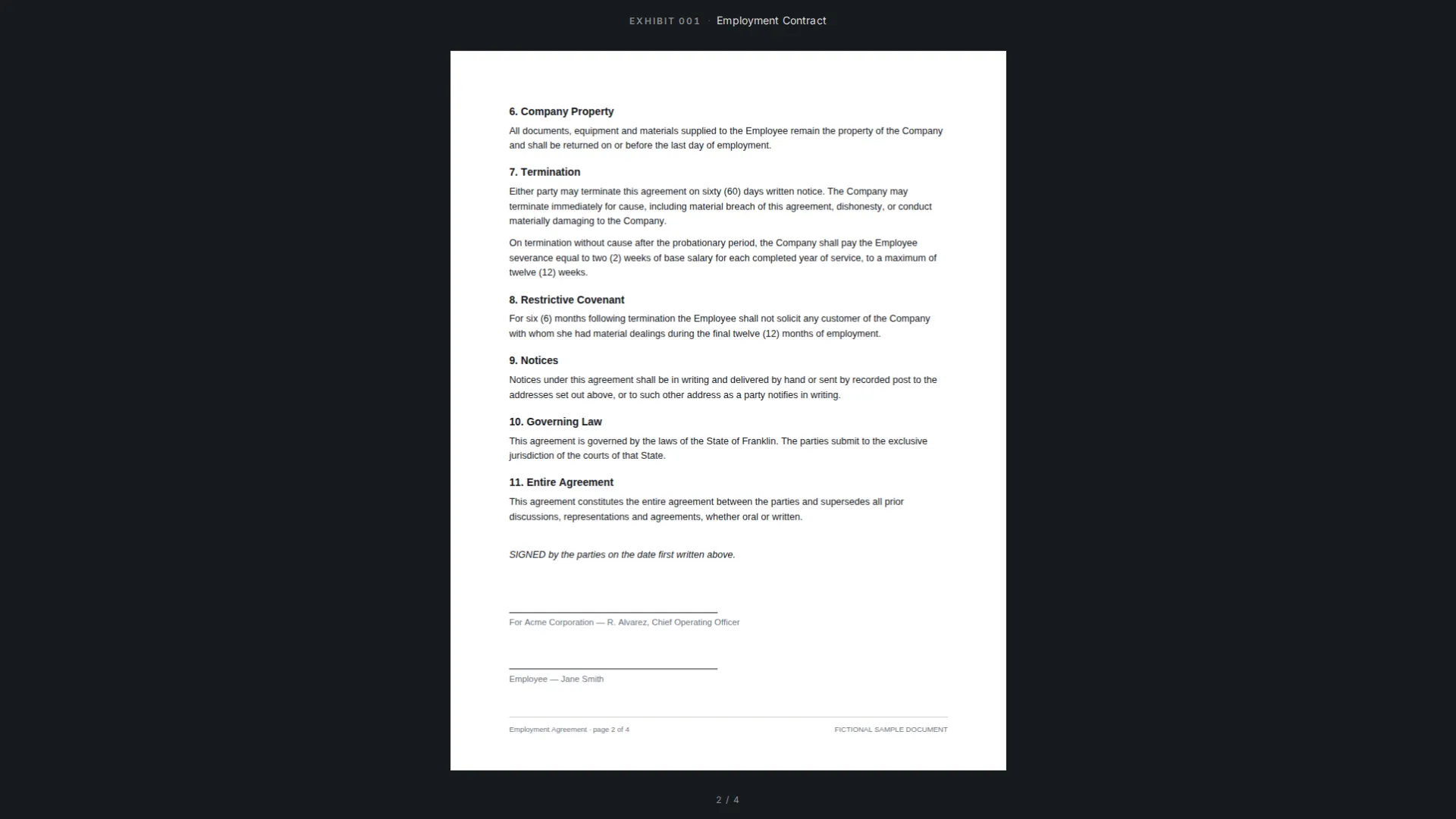
What the room actually sees
By default the page fills the screen with the exhibit number and name in one corner and the page counter in another. Each of those overlays can be turned off in Settings, which some people do for photographs, where any text on screen competes with the image. The background behind the page can be light or dark; dark tends to sit better in a dim courtroom, light tends to look cleaner on a projector.
Your annotations are shown as you drew them. Nothing else is. Whatever was on your desktop, and whatever the exhibit list says about status or your own notes, stays out of the view.
Driving it without looking down
The whole view is keyboard operated, because looking at a laptop while a witness is answering is how you miss the answer. Arrow keys, PageUp and PageDown and the space bar move pages; Home and End jump to the first and last page. The up and down arrows zoom, so do plus and minus, and Ctrl/Cmd with the mouse wheel or a trackpad pinch zooms around the pointer the way every other application does. F fits the page and W fits the width; a magnified page can be dragged to pan.
Two keys carry most of the work. Press E for the exhibit switcher, type an exhibit number or part of a name, press Enter, and that exhibit is on screen. The digits 1 to 9 put the first to ninth exhibit up without the switcher. And when a key slips your mind, press ? — the whole reference stays on screen until you press ? or Esc again, and the keys keep working underneath it. The full list is on the keyboard navigation page and in Settings.
Safe to hand to someone else
Nothing you prepared can be changed from the view. A stray click does not move a saved annotation, a stray keystroke does not rename an exhibit, and there is no delete path from the fullscreen screen. That is what makes it reasonable for a paralegal to run the screen while the lawyer examines, or for the two of you to trade the keyboard at the podium mid-witness.
Esc returns to the exhibit manager, where you can change an exhibit's status the moment the judge rules, then go back fullscreen. If you would rather the app always open documents fullscreen, Settings has an auto-fullscreen option.
Marking the page while you present
Some marks cannot be planned. The witness points at a different line than the one you highlighted, or the judge asks about a figure at the bottom of the page. Presentation mode has six live tools, one key each: P is a pen, H a highlighter, A an arrow, R a rectangle, L a laser pointer that shows while you hold the mouse button, and C a zoom callout — drag an area of the page and it is magnified in a panel you can move around. V puts the tool down.
These marks are deliberately temporary. They belong to the exhibit that is on screen and to this session: switch exhibit or leave presentation and they are gone, so the next witness starts on a clean page. Backspace removes the last mark, X clears the page (a second X within two seconds puts it back), and Ctrl/Cmd + Z undoes. If a mark turns out to be worth keeping, Ctrl/Cmd + S saves the page's marks to the exhibit as ordinary annotations. Either way the PDF file itself is never modified.
What presentation mode does not do
It presents one screen. There is no separate presenter view on a second monitor, so what you see is what the room sees; plan your examination notes on paper or on a second device rather than on the laptop. There is no built-in video conferencing either. For a remote appearance you share the Exhibit Room window through Zoom or Teams yourself, which is covered in remote hearing exhibits.
It also presents PDFs, and only PDFs. Video and audio exhibits are outside what Exhibit Room handles, so those still need whatever the courtroom normally uses for media.
Presentation questions
Can I hide the exhibit number on screen?
Yes. The exhibit number and name, the page counter and the background are all controlled in Settings, and each overlay can be switched off independently.
Does the room see my annotations?
Yes. Anything you have drawn on a page appears when that page is displayed, which is the point of preparing marks in advance. Anything you draw live with the presentation tools is visible too, until you switch exhibit or clear it.
Do the marks I draw while presenting stay on the exhibit?
Not unless you ask. Live marks are wiped when you switch exhibit or leave presentation. Press Ctrl/Cmd + S while the page is up and that page's marks are saved to the exhibit as normal annotations; the PDF file is still untouched.
What happens if I press the wrong key?
At worst you move a page, change the zoom or pick up a tool, and the keys that fix it are right there: arrow keys to step back, F to refit, V or Esc to put the tool down, X to clear the page of live marks. Nothing in the view can alter your exhibits or your saved annotations.
Is there a presenter view on a second monitor?
No. Exhibit Room shows one presentation screen. If you need private notes, keep them off the laptop.
Can I present something that is not an exhibit?
Everything presented is an exhibit in the trial. For a demonstrative, add it as an exhibit and set its status to Illustrative so your own list stays honest.
Run a full exhibit through presentation mode today
No credit card required · Works offline · No subscription