Features
Run the screen without looking at the screen
Watch a cross-examination go sideways and it is often something small: counsel breaks eye contact to find a scroll bar, the witness fills the silence, and the answer everyone needed is now three sentences further away. The mouse is a surprisingly expensive instrument in a courtroom.
Exhibit Room is built so that the screen can be driven by touch, by feel, with your eyes up. Pages, zoom, switching to a different exhibit and even drawing on the page all have a key, and the keys are short enough to learn in one practice run. When one slips your mind, ? shows the whole list and keeps it there.
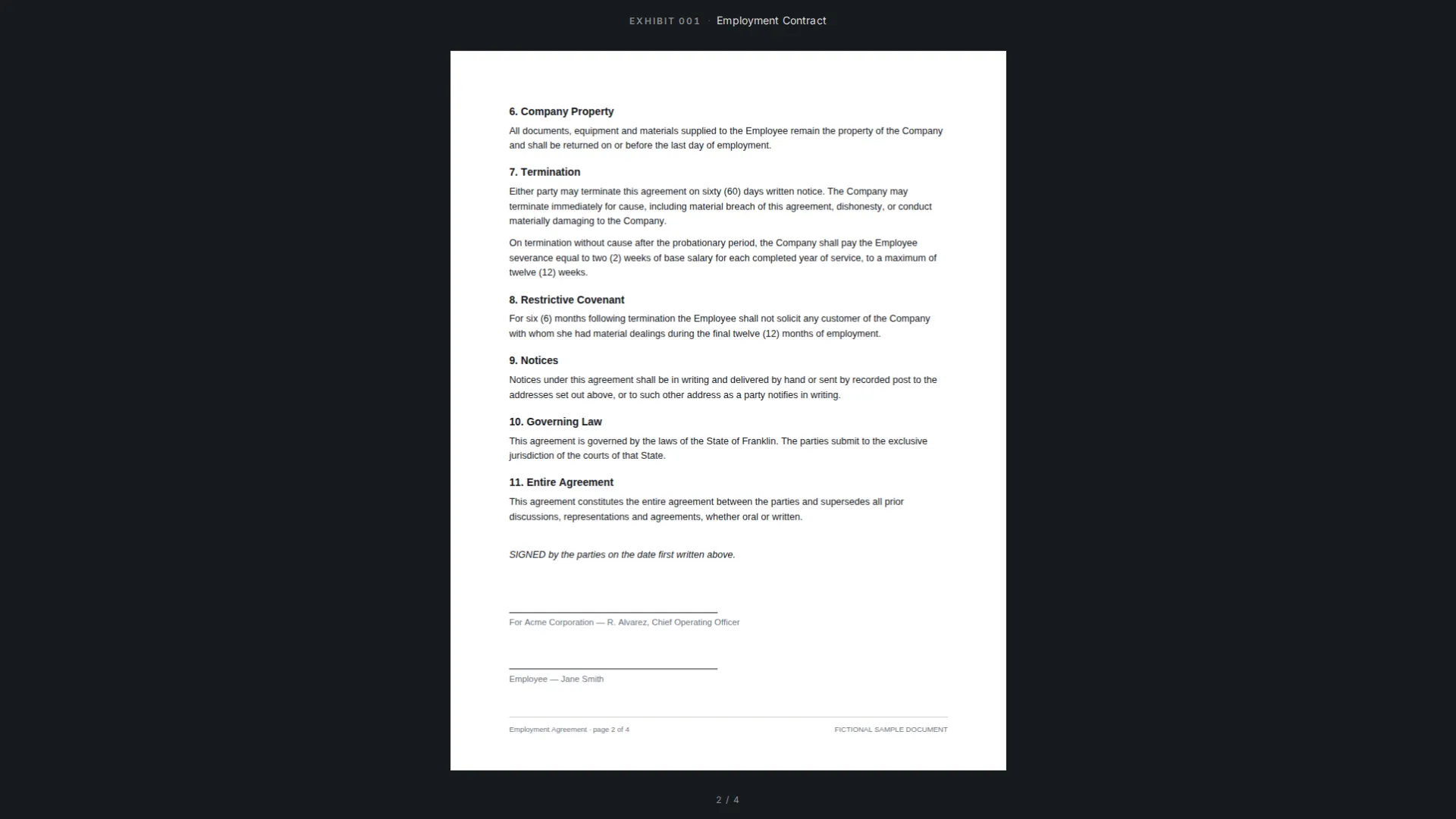
The shortcuts
| Key | Action |
|---|---|
| Left / Right arrow · Space | Previous page, next page |
| PageUp / PageDown | Previous page, next page |
| Home / End | First page, last page |
| Up / Down arrow | Zoom in, zoom out |
| + / − · Ctrl/Cmd + = / − | Zoom in, zoom out |
| Ctrl/Cmd + mouse wheel | Zoom around the pointer; a trackpad pinch does the same |
| F · Ctrl/Cmd + 0 | Fit the whole page |
| W | Fit the page width |
| Drag | Move a magnified page, with no tool in hand |
| E | Open the exhibit switcher |
| 1 – 9 | Present the first to ninth exhibit |
| ? | Show or hide the shortcut reference |
| Esc | Close the reference, then the switcher, then a callout, then the tool, then leave |
The live tools
| Key | Action |
|---|---|
| P | Pen |
| H | Highlight |
| A | Arrow |
| R | Rectangle |
| L | Laser pointer, while the mouse button is held |
| C | Zoom callout: drag an area to magnify it in a movable panel |
| V | Put the tool down |
| Backspace | Remove the last mark on this page |
| X | Clear this page; X again within two seconds restores it |
| Ctrl/Cmd + Z · Shift + Z | Undo, redo |
| Ctrl/Cmd + S | Save this page's marks to the exhibit |
E is the one that changes how you examine
Press E and a switcher opens. Type an exhibit number, or type part of an exhibit's name, press Enter, and that exhibit is on screen. You never return to a file list, never expose the exhibit manager to the room, and never break the fullscreen view.
This is what lets you follow a witness instead of a script. When an answer opens a door three exhibits away, you go there in about two seconds, which is short enough that the room reads it as part of the question rather than as a pause. It works best if the names in your set are the names you think in, which is an argument for naming exhibits carefully while you prepare.
Exhibit jumps and zoom in the moment
The digits 1 to 9 present the first to ninth exhibit in your set without opening the switcher, which is quick enough to use mid-sentence for the handful of documents an examination keeps returning to. Put those at the top of the order while you prepare. For a long document, use the arrow keys and Home and End; write the page numbers you expect to need into the exhibit's description while you prepare, and you will have them without a legal pad.
Zoom has two keys worth committing to memory. W fits the width, which is what you want for reading a paragraph of text out loud. F fits the whole page, which is what you want when the witness needs to see where on the page something sits. The up and down arrows, plus and minus, and Ctrl/Cmd with the mouse wheel or a trackpad pinch cover the in-between cases, and a magnified page can be dragged to pan. Your preferred starting point can be set as the default zoom mode in Settings.
Practice, and the limits
Six keys carry almost every examination: right arrow, left arrow, E, Enter, W and Esc. Add P and C once you trust yourself to draw in front of a jury. Run one witness end to end against the demo trial the night before and your hands will know them; press ? during the rehearsal and leave the reference up while you try each key.
Two limits. Settings gives you a reference for the shortcuts rather than a way to reassign them, so the keys are the keys. And there is no remote-control feature in Exhibit Room, so the keyboard of the presenting machine is the interface; if someone else is driving, they need to be sitting at it. Presentation mode covers what that view shows, and how to present exhibits in court covers the choreography around it.
Shortcut questions
Where do I find the full list during a trial?
Press ?. The reference stays on screen until you press ? or Esc, and every key keeps working while it is up. The same list is in Settings, and it is also available with ? in the exhibit manager.
Can I reassign the keys?
No. Settings documents the shortcuts; it does not remap them. The upside is that they are the same on every machine you sit at.
Do the keys work outside the fullscreen view?
The PDF viewer supports keyboard navigation too — arrow keys, Home and End, the zoom keys and Ctrl/Cmd with the wheel — so you can page through a document while preparing without reaching for the mouse. ? shows the preparing keys there.
How do I get out quickly if something goes wrong?
Esc. It first puts away whatever is on top — the shortcut reference, the exhibit switcher, a zoom callout, a tool in your hand — and, pressed once more, leaves presentation and returns you to the exhibit manager, where nothing you do is visible to the room.
Does the switcher search descriptions?
Type an exhibit number or part of a name. Descriptions are for the notes you read while preparing, not for finding an exhibit mid-question.
Learn six keys before your next hearing
No credit card required · Works offline · No subscription