How the PDF viewer behaves when an exhibit is up
Anyone searching for a courtroom PDF presenter usually has the documents already. They are PDFs, they have been numbered, and the question is narrower than which product to buy: what happens when one goes up on a screen, and what the controls do under your fingers.
Exhibit Room keeps a trial's exhibits, one PDF to each exhibit, and shows them fullscreen on the display you are plugged into. This page is about the viewer itself, so you can judge whether it behaves the way your examinations need.
All of it runs on the machine in front of you: documents, markup and trial data are stored locally, nothing is uploaded, and the app works offline. Licensing is a single $149 purchase covering two computers, with a 14-day trial that opens every feature.
How it fits the courtroom workflow
Follow one document from disk to screen and the shape of the app becomes clear.
Import. Say a scanned 180-page chart arrives as one PDF. Drop it on the exhibit list and it becomes an exhibit with a number, a name, a description and a status. If a cleaner scan turns up later, the replace-PDF action swaps the file underneath the exhibit you already built. Status reads as a word beside the exhibit: Not offered, Offered, Admitted, Rejected or Illustrative.
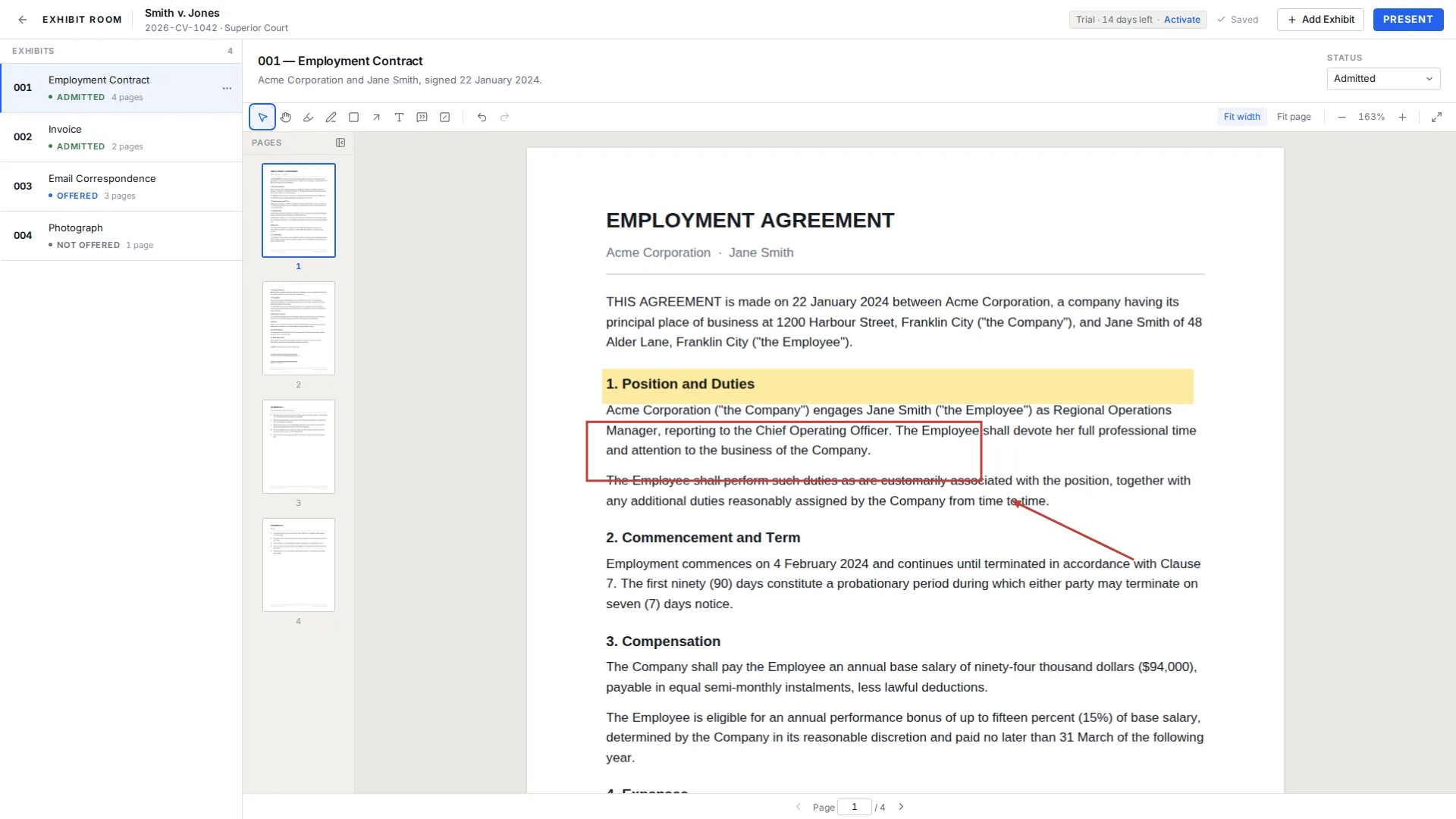
Prepare. Open the exhibit and the viewer takes the window, with a thumbnail strip, the page itself, and the markup tools. Whatever you draw here is what appears on the court's display later, so preparation and presentation are one object. The tools are covered in how to annotate exhibits in court.
Present. Press Present and the surrounding interface disappears. The page you were sitting on is the page the room receives.
Inside the viewer, day to day
The reading view scrolls continuously, so a document behaves like a document rather than a slide deck: you drift from page 14 into page 15 without a click. A thumbnail panel handles coarse movement, the usual way to reach the signature page of a long agreement.
Pages are rendered on demand instead of all at once, which is the difference between a 600-page production opening in a moment and a laptop grinding while you apologize to the bench.
Zoom has four controls. Plus and minus step in and out. Fit page drops the whole sheet on screen, which suits photographs; fit width pushes text to the edges, which suits dense paragraphs. Page jump takes a number and lands on it, and Settings sets the zoom mode a document opens in. The keys are the same in the reading view and in presentation, as set out on keyboard navigation.
Zooming to the paragraph a witness is reading
Most of the real work in front of a jury is moving between two scales. The whole page establishes what the document is; the paragraph establishes what it says.
The pattern that works: bring the page up whole, press W so the body text grows to the edges, then plus once or twice if the scan is soft. Scroll to the passage while the witness finds it on paper, and press F to bring the full page back when the answer is done.
Highlighting in advance makes this steadier: a highlight drawn the night before is already there when you zoom, and boxes and arrows hold position too. What you cannot do is create markup live, because presentation mode does not allow editing.
Changing exhibits without leaving the screen
Cross-examination rarely follows the order of your exhibit list. An answer makes the invoice relevant three questions early, and you need it up now.
Press E in presentation and an exhibit switcher opens. Type the exhibit number, or part of the name if the number is not what you have in your head, press Enter, and that exhibit takes the screen. You stay in the fullscreen view rather than picking through a file list while the room waits.
This is the argument for naming exhibits in a way you can type under pressure: Purchase order 4471 beats a name built from a file path and a date stamp. A starting structure is in the trial exhibit index template.
Keyboard reference for presentation
| Key | What it does |
|---|---|
| Left arrow, Right arrow | Move back one page, move forward one page |
| Page Up, Page Down | The same page movement, if that is what your hands know |
| Home, End | Go to the first page, go to the last page |
| Plus, minus | Zoom in, zoom out |
| F | Fit the whole page on the screen |
| W | Fit the page width to the screen |
| E | Open the exhibit switcher, then type a number or name and press Enter |
| Digits then Enter | Jump straight to that page number |
| Esc | Leave presentation mode |
What presentation mode will not let you do
Some of the value is in what is missing. Nothing you prepared can be edited in presentation: a stray keystroke cannot move or delete a saved annotation in front of a jury. The live presentation tools draw on a separate layer that is cleared when you switch exhibit, and a live mark only reaches the exhibit if you press Ctrl/Cmd + S.
Markup is also stored separately from the document. The PDF you imported is not rewritten or flattened, so your exhibits still match the copies served on everyone else. The visual redaction overlay, drawn on top rather than burned in, is a black box for presentation only: it does not remove the underlying content from the PDF file, and Exhibit Room does not do permanent redaction, so a file that must leave your hands genuinely redacted is handled elsewhere. The same point is on visual redaction.
Two absences matter. There is no text search inside a PDF and no OCR, so finding a phrase is preparation work, and import accepts PDFs only. The step-by-step sequence is in how to present a PDF in court.
Common questions about PDF handling
Is there a limit on how large the PDFs can be?
No fixed page cap is imposed, and the viewer draws pages as they are needed rather than loading everything at once, so long files open and scroll. What you feel on a heavy document comes down to your own machine.
Can I search for text inside a PDF?
Not today. Exhibit Room has no text search and no OCR, so a scanned page carries no searchable layer either. Locate the pages while you prepare and use the page jump to reach them.
Can I go to a specific page in the middle of an argument?
Yes. Type the digits of the page number and press Enter, and the view lands on it. Home and End cover the first and last pages.
Can I display a page that already has my highlighting on it?
Yes. Highlights, pen strokes, rectangles, arrows, text and callouts appear in presentation as you left them. The redaction overlay appears too, and it stays a black box drawn over the page for presentation only, not a removal of content from the file.
Does presenting or marking up a document change the original file?
No. Annotations are stored apart from the PDF, and the file you imported is never modified. For a variant of an exhibit, duplicate it rather than editing the document.
Which file types can be imported?
PDF only. Word documents, spreadsheets and image files are not imported directly, so convert them first, which also fixes the pagination you will cite.
See how your heaviest PDF behaves on your own laptop
No credit card required · Works offline · No subscription