Put the right page on the screen in front of the room
You are on your feet, the witness has the document, and the judge is waiting. Whatever sits on the screen behind you is what the jury is reading. Courtroom presentation software exists for that stretch of time: one page, large and legible, and a way to change it without turning your back.
Exhibit Room is a desktop application built for that job. Import the PDFs behind your exhibits, mark them up in advance, then press Present to fill the display with a single page. Present evidence without the clutter.
It runs on Windows 10 or later (64-bit), macOS 12 Monterey or later, and Linux. Your case documents stay on your computer and nothing is uploaded. A 14-day trial starts when you first open the app; the license is then a one-time $149 purchase covering two computers, set out on the pricing page.
How it fits the courtroom workflow
Three stages, and only the last happens while the judge is watching.
Import. Create a trial with the case name, then add documents with the file dialog or by dragging a stack onto the exhibit list. Each exhibit carries one PDF, an exhibit number, a name, a description and a status, and numbering follows whatever scheme the parties agreed, from 001 to A, B or P-12.
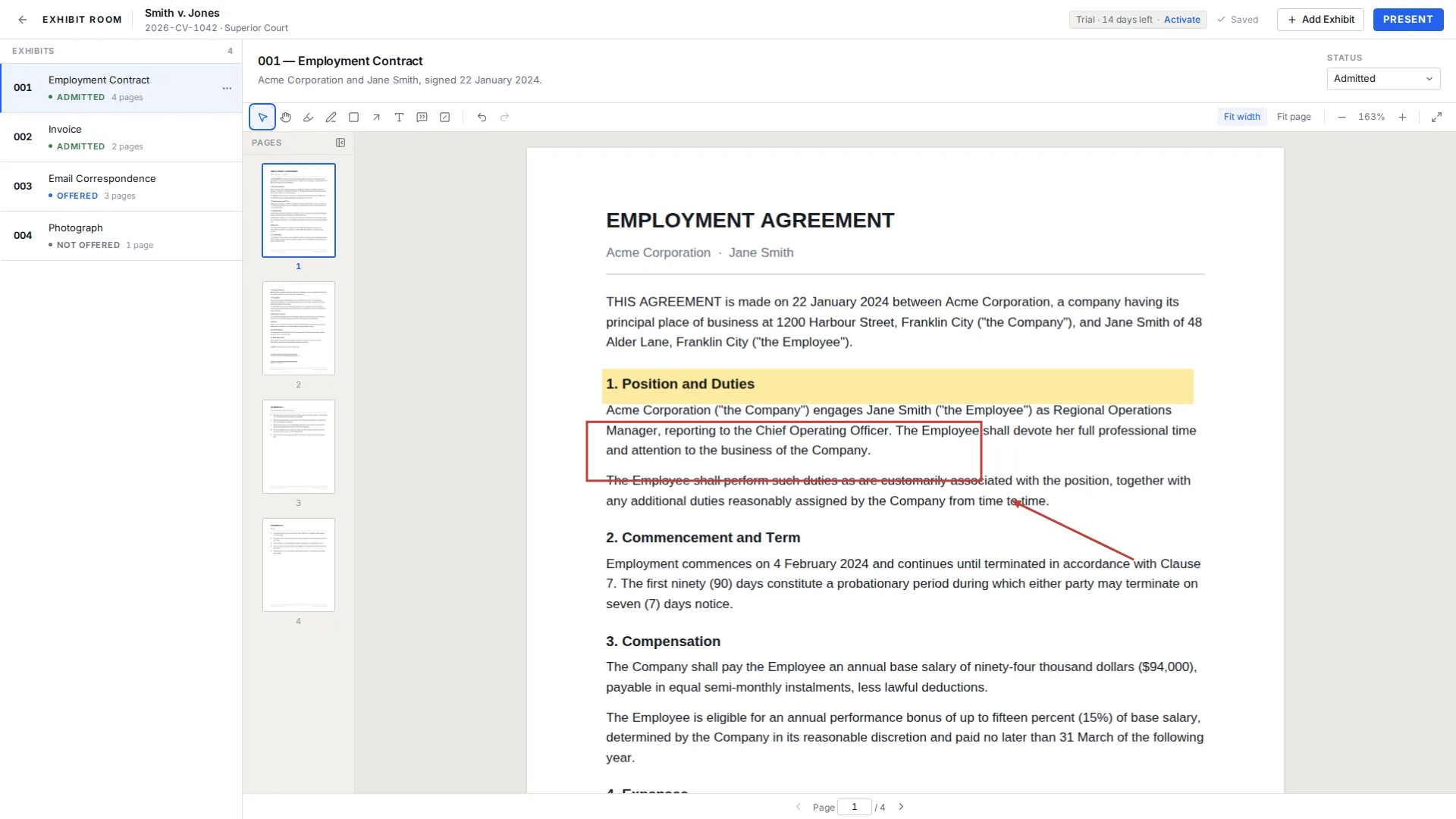
Prepare. Work the exhibit over the way you would with a highlighter: mark the sentence you will read out, box a signature, put an arrow on the figure that does not add up. Markup autosaves and is stored apart from the document, so the original PDF is never modified. The visual redaction overlay is a black box drawn over the page for presentation only: it keeps the covered text off the screen, but it does not remove the underlying content from the PDF file, and Exhibit Room does not do permanent redaction.
Present. The page fills the display, your markup comes with it, and the controls move to the keyboard. The longer walk-through is in how to present exhibits in court.
What the room sees when you press Present
Presentation mode is bare on purpose. The display carries the exhibit page, the exhibit number and name, and a page counter. No sidebar, no tab strip, no preview of what you were reading a minute ago.
All three elements answer to Settings: hide the label, hide the page counter on its own, and choose a light or dark background, which keeps glare down on a bright projector or reads closer to paper on a flat monitor.
Prepared annotations show in presentation and cannot be moved or edited there by accident. You can also mark the page live — pen, highlight, arrow, box, laser pointer and zoom callout, one key each — on a layer that is wiped when you switch exhibit, unless you save it. More on that screen in presentation mode.
Driving the display from counsel table
A mouse is awkward in front of a jury: you look down, aim at something small, and the room watches you do it. Presentation runs instead from keys you can reach without breaking your line of sight.
Left and right arrows move a page at a time, as do Page Up and Page Down. Home goes to the first page, End to the last. The up and down arrows zoom, and so does Ctrl/Cmd with the mouse wheel or a trackpad pinch. F fits the whole page; W fits the page width, which is what you want for a dense letter. The digits 1 to 9 put the first to ninth exhibit on screen. E opens the exhibit switcher: type a number or part of a name, press Enter, and the next exhibit is up. Esc leaves presentation.
Write the page numbers you expect to use on your outline, and rehearse until next page, fit width and switch exhibit are muscle memory. Press ? and the whole shortcut list stays on screen until you dismiss it; Settings keeps the same reference.
Connecting to the court's screen or projector
Exhibit Room shows one fullscreen view, and there is no separate presenter view on a second monitor. The usual arrangement is therefore a mirrored display: what you see, the room sees, so notes and outlines belong on paper or a second device.
Courtrooms differ on the physical side, from an HDMI lead at counsel table to a wall plate only the clerk can switch on. Find out which before the day, and bring the adapter your machine needs.
Then look at the picture from where the jury sits, since aspect ratio differences letterbox a page or crop its edges. The courtroom technology checklist goes further on equipment.
Before you walk in: a courtroom check
- Charge the laptop and pack the charger, the video cable and every adapter.
- Ask the clerk which input the court's screen uses and who switches it on.
- Mirror the display and confirm no edge of the page is cut off.
- Press Present on a real exhibit and watch it reach the court's screen.
- Pick the light or dark background against the screen in the room.
- Set the exhibit label and page counter the way you want them.
- Run the keys once: next page, fit width, exhibit switcher, Esc.
- Export a .exhibitroom backup and keep it on a second machine.
When the courtroom has no internet
Many courtrooms have weak signal or a policy against connecting. Exhibit Room is local-first, so importing, annotating, reordering and presenting run on your own machine, and nothing about your case is uploaded.
A license is activated once and re-checked occasionally, and neither step interrupts you: the app does not lock in the middle of work because it is offline. There is more on offline courtroom presentation.
Because nothing syncs, moving a trial between machines is deliberate. Export it as a single .exhibitroom file holding the metadata, the PDFs and the annotations, and import it on the other computer. That covers the second machine your license allows and doubles as a backup.
Questions from counsel and trial staff
Will it work with the projector or screen in the courtroom?
Exhibit Room presents through whichever display your laptop is connected to, using the court's feed and whatever adapter your machine needs. Because it fills a single screen, the normal arrangement is a mirrored display. Test the cable and the picture in the room beforehand.
Does it need an internet connection while court is in session?
No. Importing, annotating and presenting run on your computer, and your files never leave it. A connection is needed once to activate the license and occasionally to re-check it, and the app will not lock mid-work because you are offline.
What do the judge and jury actually see?
The exhibit page filling the screen, with the exhibit number and name and a page counter as the only overlays, plus any markup you prepared. They do not see your exhibit list or your file names.
Can the exhibit label be kept off the screen?
Yes. Settings has one switch for the exhibit number and name and a separate switch for the page counter. Some counsel keep the label showing so the screen and the record agree.
Which operating systems does it run on?
Windows 10 or later in 64-bit, macOS 12 Monterey or later on Apple Silicon and Intel, and Linux as an AppImage or .deb. All three builds are on the download page, and one license covers two computers.
Can I try it before relying on it in a real hearing?
There is a 14-day trial with every feature and no credit card; a small Exhibit Room mark shows in the corner of presentation mode until you activate a license; your documents are never marked. A fictional demo trial, Smith v. Jones, is included, though rehearsing with your own PDFs on the laptop you will carry tells you more.
Build the trial tonight, stand up with it tomorrow
No credit card required · Works offline · No subscription