Features
Annotate exhibit PDFs without changing the file
Most exhibits turn on one sentence, one figure, or one line above a signature. Everything else on the page is noise. Put the whole page on a screen and then ask a jury to follow "the third sentence of the second full paragraph" and you lose half a minute of their attention while they hunt for it, and you lose the witness's rhythm with it.
Exhibit Room's annotation tools let you put the mark there in advance, in your office, at the pace you actually think. The marks are kept beside the PDF rather than inside it, so the file that went out in discovery stays exactly the file that went out in discovery.
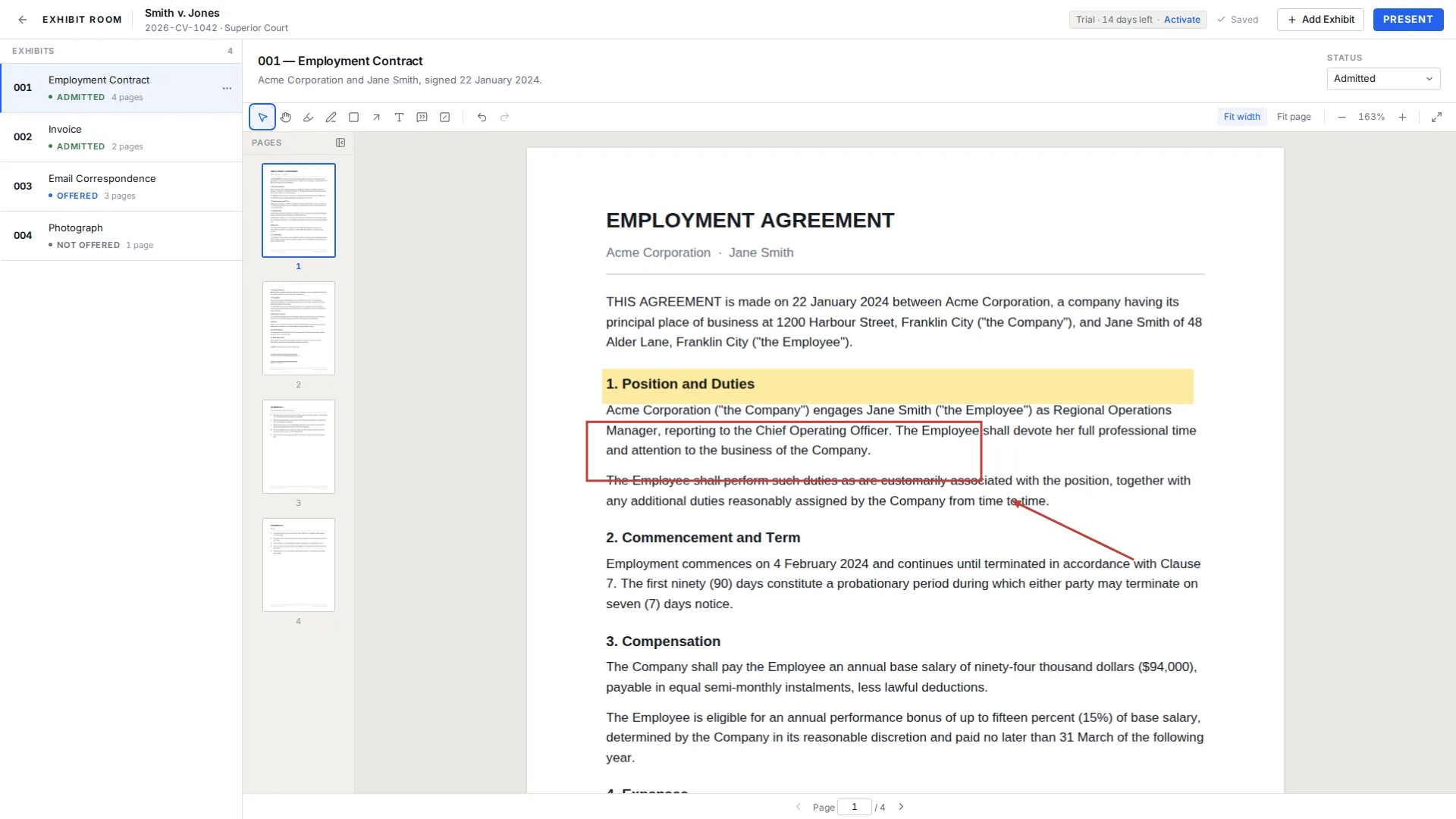
The seven tools
| Tool | What it does | Typical use |
|---|---|---|
| Highlight | Translucent color band over text | The operative clause in a contract |
| Pen | Freehand stroke | Tracing a route on a site diagram |
| Rectangle | Outlined box | Isolating one row of a ledger |
| Arrow | Straight line with a head | Pointing at a date stamp |
| Text | Typed words on the page | A short label the witness can read aloud |
| Callout | Text attached to a pointer | Naming a person in a photograph |
| Redaction overlay | Opaque black box | Covering a number that should not be on screen |
Marking an exhibit, step by step
Open an exhibit from the trial's exhibit list and the PDF loads in the viewer with continuous scrolling and a thumbnail strip. Pick a tool, drag on the page, and the mark appears. Everything you draw can be moved, resized, edited or deleted afterward, and undo and redo work the way they do in any editor.
There is no save button. Annotation changes are written as you make them, so a laptop that loses power at 11pm does not take your morning's work with it. If you use one tool far more than the others, set it as the default annotation tool in Settings and it will be selected each time you open a document.
Marks that read from the back of the room
Courtroom monitors are smaller and further away than the screen you prepare on, and a projector washes out color. Two habits help. Prefer shape over color: a rectangle around a paragraph survives a bad projector, a pale yellow highlight sometimes does not. And mark one thing per page, because two arrows on the same page force the jury to choose which one you meant.
Work at fit-width zoom while you annotate so your marks are sized against the full page rather than a zoomed detail. If a page needs several points made in sequence, consider duplicating the exhibit and marking each copy separately, so you can advance rather than explain.
How annotations behave when you present
Annotations are visible in presentation mode exactly as you drew them, and nothing you prepared can be moved, edited or deleted from that view by accident: there is no selection tool in the fullscreen screen.
What you can do there is add. The live presentation tools — pen, highlight, arrow, rectangle, laser pointer and zoom callout, one key each — draw on a separate layer that is cleared when you switch exhibit or leave presentation. A live mark only reaches the exhibit if you press Ctrl/Cmd + S, which saves that page's marks as ordinary annotations. So the marks you planned at your desk are the ones the room sees by default, and the marks you improvise stay improvised unless you decide otherwise. Annotating exhibits in court walks through how that plays out during live testimony.
Limits worth knowing
Exhibit Room does not search the text inside a PDF and does not run OCR, so you find the passage you want by scrolling, by thumbnail, or by page number. For a long document, note the page numbers in the exhibit's description field while you prepare.
Annotations live in the trial's data on your computer. They travel with the trial when you export and import a trial file, and they are not written into the PDF, so sending someone the original PDF sends them an unmarked document. Exhibit Room imports PDFs only; convert other formats before you bring them in.
Questions about annotating exhibits
Does annotating change the original PDF?
No. Marks are stored in Exhibit Room's own data alongside the exhibit. The PDF file itself is never modified, which matters when the same file has already been produced or filed.
Can I remove a mark later?
Yes. Select it and delete it, or undo. Because annotations are separate from the document, removing one leaves no trace on the page.
Can I draw on a page while I am presenting?
Yes. Press P for a pen, H for a highlighter, A for an arrow, R for a rectangle, L for a laser pointer or C for a zoom callout, and draw on the page. These marks are temporary — they are wiped when you switch exhibit or leave presentation — unless you press Ctrl/Cmd + S to save the page's marks to the exhibit. The annotations you prepared beforehand cannot be changed from the presentation view.
Will the jury see every mark I have made?
Any annotation on a page shows when that page is on screen. If a mark was only for your own preparation, delete it before trial or keep an unannotated duplicate of the exhibit.
Is there a default tool I can set?
Yes. Settings has a default annotation tool and a default zoom mode, so the app opens in the state you usually work in.
Mark up your own exhibits during the 14-day trial
No credit card required · Works offline · No subscription