Build the exhibit set at your desk, not at the podium
Most of what makes an exhibit presentation look easy happened days earlier, at a desk, with a folder of PDFs open next to counsel's exhibit list. Exhibit Room is a desktop application for that stretch of the job: assemble the set once, mark the pages you know you will be asked about, and the day itself becomes a matter of typing a number.
This page is for whoever does the assembling: usually a paralegal or trial-support staffer, sometimes the attorney alone the night before. Either way the task is to turn a pile of documents into a numbered, named, ordered set where any page reaches the screen with a couple of keystrokes.
It runs on Windows, macOS and Linux, what you import stays on that machine, and the 14-day trial includes every feature; a small Exhibit Room mark sits in the corner of presentation mode until a license is activated, and your documents are never marked.
How it fits the courtroom workflow
Three stages, and preparation is where the hours go.
Import. Start a trial with the case name, the only required field, add the case number, court and parties if you want them recorded, and bring in the PDFs, one per exhibit.
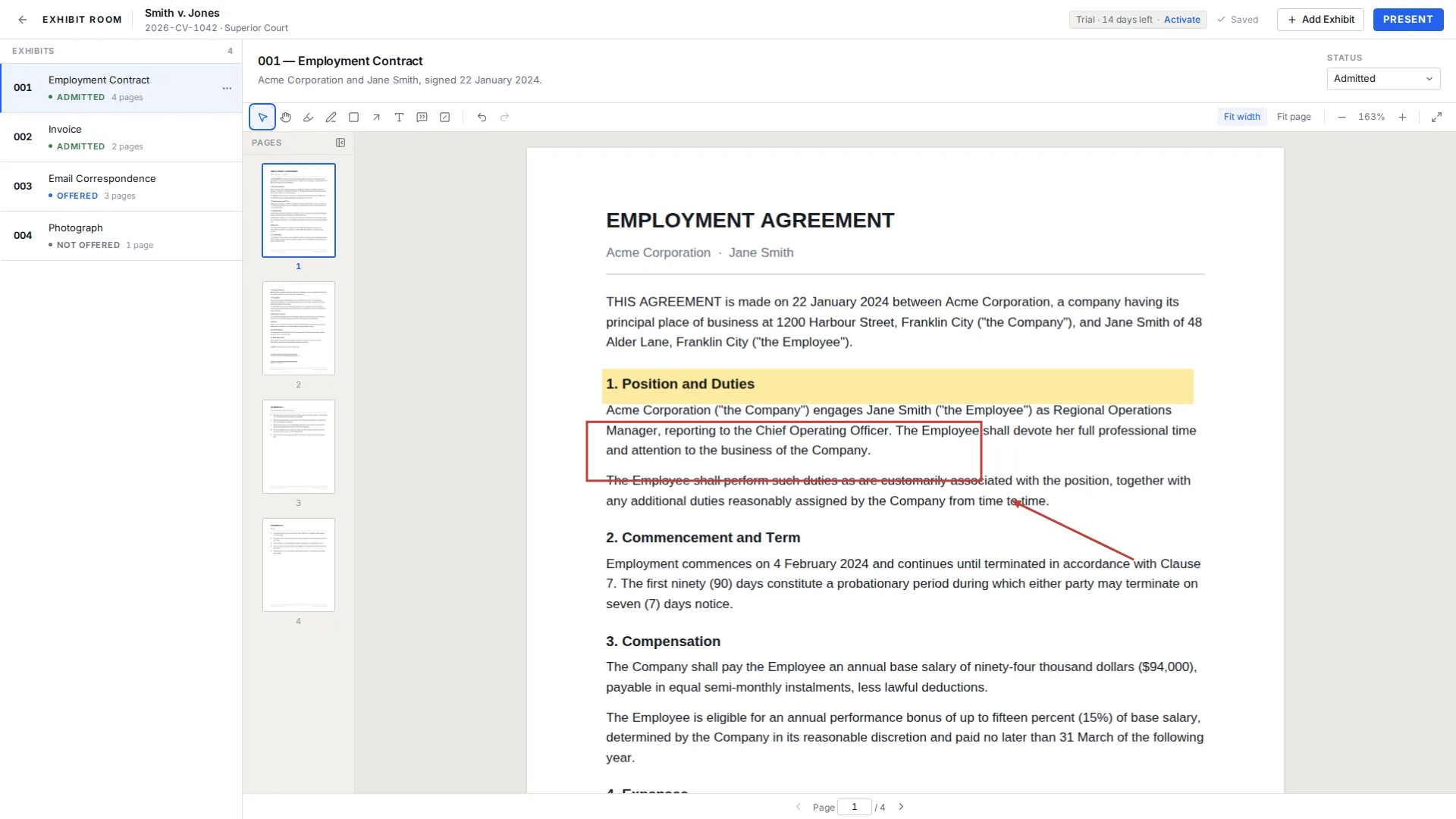
Prepare. Read each exhibit the way the other side will, and put markup where it earns its place: a highlight across the operative sentence, an arrow at an unsigned signature block. Reorder the set to match your outline.
Present. One click on Present opens a fullscreen page holding only the document, the exhibit number and name, and the page counter. Arrow keys move pages, typing digits and Enter jumps to one, E opens the exhibit switcher, Esc returns you to the manager, and nothing can be edited there by accident. How to present exhibits in court covers the day itself.
Getting the PDFs in
Use the file picker, or drag files onto the window, and select several at once rather than adding them one by one. Each file becomes its own exhibit, one PDF to one number.
Exhibit Room reads PDF and only PDF. A Word brief, a payments spreadsheet, a phone photograph, an accounting export: each has to be converted to PDF in the program that produced it before you import. Do that early, because conversion is where page breaks move and small print gets smaller.
The wrong version is a normal event. Every exhibit has a replace action that swaps the PDF underneath while keeping its number, name, description and position. Open, rename, change status, duplicate and delete sit alongside it.
Numbers, names and the order they sit in
New exhibits number themselves 001, 002, 003, and you can overwrite that with whatever the case uses: A, B, A-1, P-12, or a scheme the parties agreed on months ago. Numbering trial exhibits covers the choices worth making first.
Each exhibit also takes a name and a description. Put in the name what a person would say out loud, such as March 14 email from Alvarez, and in the description the detail that helps you find it again under pressure.
The set reorders by hand, and every exhibit carries a status of Not offered, Offered, Admitted, Rejected or Illustrative, shown as text rather than as a color.
Marking up pages before you stand up
The tools are highlight, pen, rectangle, arrow, text and callout, plus a visual redaction overlay. Anything you draw can be moved, resized, edited or deleted, undo and redo behave as expected, and work saves itself as you go.
Annotations live separately from the document, and the original PDF is never modified, so the file in your case folder is untouched.
The redaction tool needs a warning, because its name invites a bad assumption. The visual redaction overlay draws a black box over part of the page for presentation only. It does not remove the underlying content from the PDF file, and Exhibit Room does not do permanent redaction. Whatever sits under the box is still in the document, so the overlay suits keeping something off a screen, never a document you produce or file. How to redact a PDF spells out the difference.
Long scanned documents, and what a clean scan buys you
Medical records and bank statements arrive as scans of several hundred pages, which is where a viewer holds up or does not. Pages render on demand rather than all at once, so a large PDF opens quickly and scrolls continuously, thumbnails give you the shape of the document, and page jump takes you straight to a number.
Dense scans usually want fit width instead of fit page, since filling the horizontal space is what makes eight point type readable. Zoom, fit and page jump are all on the keyboard.
There is no text search inside a PDF and no OCR, so thumbnails, page jump and your own notes are the navigation. That works far better on a straight, evenly lit 300 dpi scan than on a skewed photocopy. Scanning and PDF quality for exhibits covers the settings worth insisting on.
A preparation pass to run before trial day
- Every document on counsel's list exists as an exhibit, and every exhibit is on the list.
- Each exhibit opens, renders to the last page, and is the version you meant.
- Numbers follow one scheme, with no duplicates and no unexplained gaps.
- Names read the way you would say them out loud, and descriptions say where the document came from.
- The order matches the examination outline.
- Markup sits on the pages you expect to use, and stray annotations are gone.
- Long scans have been scrolled end to end at fit width to catch blank or upside down pages.
- The whole set has been opened once with the network switched off, to confirm nothing depends on it.
Questions from people doing the prep
Can I import Word documents, spreadsheets or photographs?
No. Exhibit Room imports PDF files only, so convert other formats to PDF first in the program that created them. Doing them in one sitting early beats a stray .docx the morning of.
Can I drag in a whole folder of PDFs at once?
You can select many PDFs at once in the file picker, or drag a multi-file selection onto the window, and each arrives as its own exhibit. Import takes the files you select rather than walking a folder tree, so flatten nested folders first.
Does annotating change the original PDF?
No. Annotations are stored separately and the original PDF is never modified, so the copy in your case folder is unchanged.
Is the redaction permanent?
No. The visual redaction overlay is a black box drawn over the page for presentation only, and it does not remove the underlying content from the PDF file. Exhibit Room does not do permanent redaction, so use a dedicated process for anything you produce or file.
What if I imported the wrong version of a document?
Use the replace action to swap in the correct PDF; the number, name, description and position stay as they were. Check any annotations afterward, since pages may have shifted between versions.
Does it work without an internet connection?
Yes. Your PDFs, annotations and trial data stay on your computer and nothing is uploaded. A connection is needed once to activate a license and occasionally to re-check it, and the application never locks mid-work because it is offline.
Load a folder of PDFs and see how the set comes together
No credit card required · Works offline · No subscription