Every exhibit is an item in the record, not just a file
An exhibit in a courtroom is more than a file. It is an item in the record: a number the clerk writes down, a name the witness is asked to look at, and a status that changes the moment the judge rules.
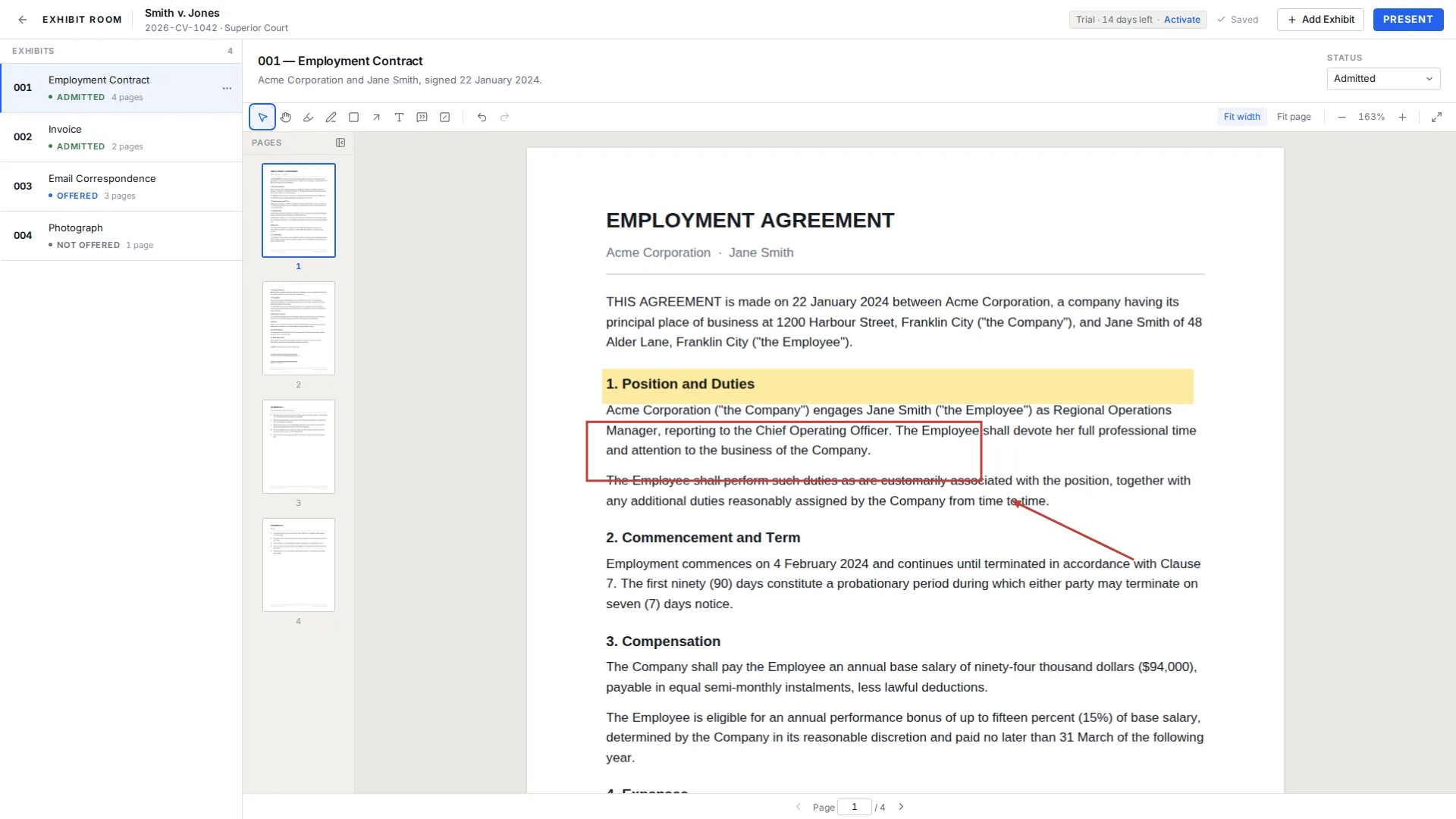
Exhibit Room is desktop software organized around that item rather than the PDF behind it. Each exhibit carries a number, a name, a description, one PDF and a status. Your case documents stay on your computer, nothing is uploaded, and the app runs offline on Windows, macOS and Linux.
This page covers the record-keeping side of the job: numbering, status, and the small corrections you make under time pressure.
How it fits the courtroom workflow
Import. One exhibit holds one PDF. Drop files onto the exhibit list or pick them through the file dialog, several at a time. PDF is the only format Exhibit Room reads, so anything else has to be converted first.
Prepare. Give the item its number, a name short enough to say out loud, and a description for your own reference. Then mark the pages with highlight, pen, rectangle, arrow, text, callout, or the visual redaction overlay. Markup autosaves and is stored separately, so the original PDF is never modified. The visual redaction is a black box drawn over the page for presentation only. It does not remove the underlying content from the PDF file, and Exhibit Room does not do permanent redaction.
Present. Press Present and the page fills the screen with only the exhibit number, the name and the page counter over it. The shortcut worth learning here is E, the exhibit switcher: type a number or a name, press Enter, and the item is up. Nothing can be edited by accident while presenting. See how to present exhibits in court.
Numbering schemes, and how Exhibit Room follows yours
New exhibits are numbered 001, 002, 003 and up, which is enough for a short hearing where you mark in order. The number is a field you type into, so use A, B and C for a deposition binder, P-12 and P-13 when your side's exhibits carry a party prefix, or A-1 when a parent document has attachments marked separately.
Each exhibit also has a name and a description. The name shows on screen during presentation, so 'Lease, 3 March 2023' beats a scanner file name. The description is private working space for provenance or the sponsoring witness.
Exhibits can be reordered, so your running order does not have to match the order you imported in. Numbering trial exhibits walks through the common schemes, and exhibit number covers the term.
Status you can read across the table
Exhibit Room tracks five statuses: Not offered, Offered, Admitted, Rejected and Illustrative. Every exhibit has one, and it is always written out as text beside the exhibit rather than shown only as a color.
In practice one person keeps it current while the examination runs. Counsel tenders the document, the status moves from Not offered to Offered, and when the court rules it moves to Admitted or Rejected. A paralegal who owns that one field all morning earns it back at the end of the day, when somebody asks what came in and the answer is in the list. See exhibit status tracking and tracking exhibit status during trial.
The context actions that rescue a morning
Each exhibit has context actions: open, rename, change status, replace PDF, duplicate, and delete with a confirmation step. They sound unremarkable until something goes wrong twenty minutes before a hearing.
Say a corrected supply agreement arrives at 8:40 on the morning of the hearing and the copy you loaded last week is missing a signature page. Rather than importing a new exhibit and breaking numbering people have already written down, use replace PDF on the existing item: it keeps its number, name, description, status and place in the order. Page through the new file first, since pagination may have shifted and your markup was drawn against the old version.
Duplicate is the other one worth knowing: if the same document has to be marked twice, once per witness, it gives you a second item to renumber instead of a second import.
Keep your written exhibit list outside the app
Exhibit Room does not print exhibit lists, and there are no exhibit stickers or labels, so the document you hand the clerk and opposing counsel is a separate artifact you maintain yourself.
The workable approach is a spreadsheet mirroring your exhibit numbers, updated in the same sitting as the app. This site publishes CSV starting points: a trial exhibit list for the filed version, an exhibit index for your own binder, and an exhibit admission tracker for rulings as they come.
The five statuses and when to use them
| Status | When you would use it |
|---|---|
| Not offered | Prepared and loaded, but not tendered. Most of your list sits here the morning of a hearing. |
| Offered | Tendered, with no ruling yet, which covers an objection taken under advisement. |
| Admitted | The court received the exhibit into evidence. This is the one people ask about at the end of the day. |
| Rejected | The court declined to receive it. Keep the item in the list, since you may need a record of what was refused. |
| Illustrative | Demonstrative material shown to help the factfinder follow testimony rather than offered as substantive proof, to the extent the court permits. |
Questions about exhibit numbers and status
Can I use letters instead of numbers for my exhibits?
Yes. The exhibit number is a field you type into, so A, B and C work, and so do prefixes such as P-12 or D-4 and attachment numbers such as A-1. The 001, 002 default is only a starting point, and you can edit a number or reorder the list at any time after import.
Does Exhibit Room stamp the exhibit number onto the PDF pages?
No. The number is a field in Exhibit Room, drawn over the page in presentation, not printed onto the page itself. There is no stamping and there are no stickers or labels, so marked copies have to be produced elsewhere before import.
Does it keep track of which exhibits were admitted?
Yes, through the status field. Not offered, Offered, Admitted, Rejected and Illustrative appear as text in the list, and you change the value as rulings come. The app prints no report, so copy it into your own tracker at a break.
Can I swap in a corrected PDF without losing the exhibit?
Yes. Replace PDF puts a new file behind the existing exhibit, which keeps its number, name, description, status and position. Review the new file before you present it, because pages may have moved and markup was drawn against the earlier version.
Does it handle Bates numbers?
Exhibit Room does not apply Bates numbers and does no Bates stamping. Numbers already stamped on a page stay visible because they are part of the page, but there is no PDF text search, so you cannot look one up. See bates number for background.
Can I print an exhibit list from the app?
No. Exhibit Room does not print or export exhibit lists, so the list you file and hand across the table is kept separately. The CSV templates on this site give you a structure to keep in step.
Number your exhibits once and keep the record straight
No credit card required · Works offline · No subscription