Keep every matter separate, and keep a copy you control
Most litigators are not running one trial. There is a hearing in one matter, a trial date in another, and an arbitration that keeps sliding, all from the same laptop. Exhibit Room separates them at the top: the trial is the outer container, and every exhibit belongs to exactly one.
Because the software is local-first, looking after the set is also looking after the data. PDFs, annotations and trial records sit on your own machine and nothing is uploaded, so nobody can lock you out of a case file and nobody is keeping a spare copy for you either. Backups are yours to make, and there is one file format for making them.
What follows is the long view: creating matters, reusing structure between them, exporting a trial, and the settings that decide where all of this lives on disk.
How it fits the courtroom workflow
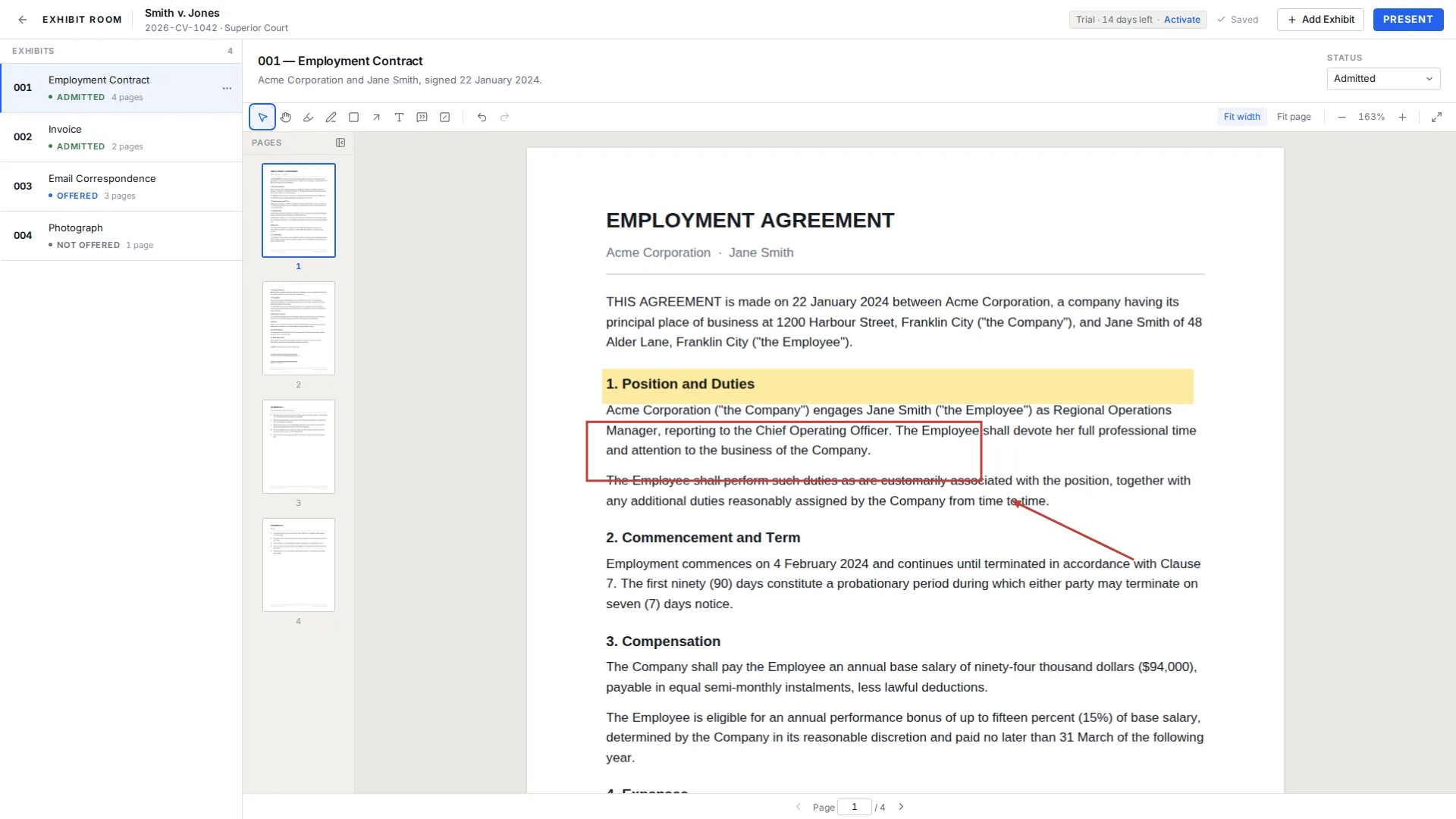
Getting documents in is a file operation. Open the trial you are working in, then drag PDFs onto its exhibit list or choose them from the file dialog. Only PDFs are accepted, so scans, exports and saved messages have to be converted first; preparing exhibits for trial covers that run-up.
Preparation happens inside the exhibit. The viewer renders pages as you reach them, so a production of several hundred pages opens without a wait. Markup is kept separately from the file, leaving the source PDF as it was, and the redaction tool is a black box drawn over the page for presentation only. It does not remove the underlying content from the PDF file, and permanent redaction is not something Exhibit Room does.
Present takes the current exhibit fullscreen, and the number, name and page counter drawn over it can each be switched off in Settings. Showing a document never needs the network; see offline courtroom presentation.
Every matter gets its own trial record
Creating a trial takes one required field, the case name. Case number, court and parties are optional and worth filling in anyway, because those are what you read six weeks later when four matters are in the list and two involve the same client. Trials can be renamed, duplicated and deleted, and search runs across them rather than only inside the open one.
A fictional demo trial, Smith v. Jones, is included. Use it to try markup and presentation before real documents go near the software, then leave it or remove it once your own matters are set up.
Duplicate a trial instead of rebuilding one
Duplicating is for the case that should start where an older one finished. A practice handling the same kind of dispute repeatedly settles on a house order for exhibits, and copying a completed matter carries that order over. Rename the copy, strip what does not apply, and the skeleton is standing.
The more important habit is one trial per matter, not one per hearing. If a motion in limine, a summary judgment hearing and the trial itself each had their own record, you would finish with three drifting versions of the same exhibit set and no dependable answer about what has already been admitted. Keep the matter whole and let status carry the history. Organizing trial exhibits goes further into structure.
Backup and transfer, one file at a time
Export a trial and you get a single .exhibitroom file holding the trial metadata, the PDFs and the annotations together. Not a folder, not a manifest pointing elsewhere: one file to copy onto an external drive, store with the case archive, or carry to a second machine.
Import puts that file back into Exhibit Room on another computer, which is how a matter moves from the office desktop to the courtroom laptop. The license covers 2 computers, matching the pattern of one machine you prepare on and one you carry; details are on pricing.
There is no cloud sync. Nothing uploads, and no copy of your case sits on somebody else's server. The trade is direct: backups are manual and stay with you, so if you never export, no export exists. Trial backup and transfer sets out the mechanics.
Settings, and where the data actually sits
Settings answers the question people ask second, after the one about the cloud: where are the files. The data location is shown there, so you can aim an existing backup routine at it or confirm it already falls inside whatever your disk image covers.
The rest removes friction you would otherwise meet every session. Pick the default annotation tool, pick the default zoom mode, and decide which overlays presentation draws: exhibit number, page number, background and auto-fullscreen. Theme is light or dark, and a keyboard shortcuts reference lives in the same place; keyboard navigation lists them too.
License and device status are here as well, so you can see which of your 2 computers are active. So are updates: the app checks for them and installs when you choose, never on its own.
An end-of-week backup routine
- Confirm the exhibit numbers in each active matter still agree with your written exhibit list.
- Update the status on every exhibit tendered or ruled on this week.
- Export each active trial to a .exhibitroom file named with the matter and the date.
- Copy those exports somewhere other than the laptop you present from.
- Import the newest export on your second computer if it also has to be current.
- Check the data location in Settings if your backup software copies folders instead.
- Retire exports older than your retention practice so an old version cannot be mistaken for the live one.
Questions about managing trials over time
Does Exhibit Room sync to the cloud?
No. Trials, PDFs and annotations are stored only on your computer and nothing is uploaded, so moving a matter between machines is a deliberate export and import rather than a background sync. The app needs the internet once to activate a license and occasionally to re-check it, and it will not lock mid-work because you are offline.
How do I move a trial to another computer?
Export it to a .exhibitroom file, copy that file across on a drive, and import it in Exhibit Room on the other machine. The file carries the metadata, the PDFs and the annotations together, so nothing has to be rebuilt at the far end.
Where are my files stored?
On your own disk, at the data location shown in Settings. Point your normal backup at that path if you back up folders, or rely on exported .exhibitroom files if you prefer one portable file per matter.
What happens when I delete a trial?
It comes out of your trial list. Since backups are manual and no copy is held on a server, export it first if there is any chance you will want it again.
Do updates install automatically?
No. Exhibit Room checks for updates and installs them when you choose, and updates are never forced. You can hold one until after a trial date and take it in a quieter week.
How large can a trial get?
No limit is published, so disk space is the practical constraint. The viewer renders pages on demand, which is why a PDF running to several hundred pages opens without loading the whole document first.
Hold every matter in one place and keep your own copy
No credit card required · Works offline · No subscription